

ONLINE ENROLMENT

🚩 Important

Once accepted as exchange students at FSV UK, all students receive an email with instructions on how to obtain access to the CU Student Information System (SIS).

Each student MUST take care of the online enrolment to be able to log into SIS - without SIS access, it will not be possible to register for courses. 

Online enrolment

For a successful enrolment to SIS, after receiving the instruction email from the IO, you need first to verify your identity online and then to set your login & password.

Please follow the following steps:

  • Verify your identity online

    1. Access the verification platform by clicking HERE and entering the required data: first name, last name, and your date of birth. After that, click on “proceed”. Please write your name in the same way you noted it when applying for your exchange at FSV UK. In case of technical problems, please try swapping the name and surname first before contacting the ServiceDesk.
      image.png

       
    2. Choose the ID verification method using this key:
      • a) For most of the EU citizens*: use the platform Identita občana (Citizen Identity). Detailed guidelines on how to go through the verification process are available HERE.
        *Austria, Denmark, Croatia, Luxembourg, Poland, Slovenia, Belgium, Estonia, Italy, Latvia, Portugal, Slovakia, Cyprus, Spain, Liechtenstein, Malta, Romania, Germany, France, Lithuania, Netherlands, Sweden.
        ‼️Recommendation: It may happen that German citizens encounter problems with the verification via this method. In such case, we kindly ask them to use option b.
         
    • b) For all non-EU citizens and nationalities that are not covered by option number 1: use the platform SvipeID. Detailed guidelines on how to go through the verification process are available HERE.
  • Set your login/password for SIS and other CU platforms

    1. Once your identity has been verified, you will be able to set the password to enter the SIS and other CU platforms. This password can be used during your whole stay at CU.

       
    2. Once your password has been set, the system will inform you about the 8-digit identification/personal number (so-called UKCO) you should use when logging into the information systems of Charles University. Also, you will receive the number and instructions on how to use it by email. When logging into the SIS, please use the number as your login and the set password.

Support service

If you are having trouble with the online enrolment, please don‘t hesitate to report it via this form to our ServiceDesk. When describing the issue, please be as precise as possible and always include screenshots.

  • Archive: No longer in use instructions

    Every student will receive an email with a unique link from the Central CU IT office to open CAS (Charles University Authentication Service)IMPORTANT: The link is valid only for 5 days, make sure you change your password ASAP.

    Your 8-digit student personal number (so-called UKČO) will also be noted in the email. This number will serve as your login/username for Charles Universtiy systems and platforms.

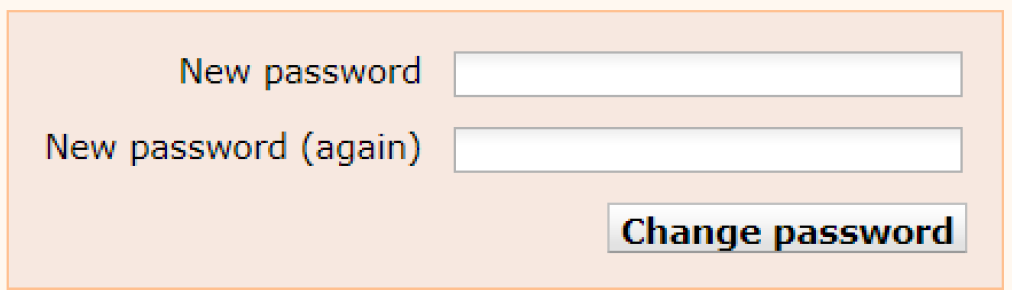
    You need to click on the link and set up a new password in CAS. This password serves only for the SIS login for the online course registration.* If you can log in to SIS (Student Information System) then the process was successful!

    Follow this PDF tutorial for smooth enrolment.
    new-password

    *The password you just set up is not verified and for now, it only grants you access to SIS for the course registration. Once you go have your CU student card issued at the CU Card Service Centre, you will receive credentials to verify the password fully, i.e., to change it again in CAS (you can set up the same password as before). Once that’s done, you will have full access to all CU systems (except for eduroam, a WiFi connection).